Friday, February 1, 2019

Thing 7: Presentation Tools

In my position people ask me what I think of Google Slides. There are still the tried and true Power Point lovers who don't want to make the switch to slides. While I know they are mainly averse to the time it takes to learn something new,there are some things I think Power Point does better -for example, animations/slide transitions. Our district utilizes the Google Suite, so people who hang on to Power Point tend to get confused and frustrated if they are asked to use slides. I explored Thing 7 with hopes of learning ways to enhance slides and to get familiar with Pear Deck. I think Pear Deck is snappy and I like how it engages the learners/participants in your lesson/slides presentation. Students can type or draw, they can answer a question or check in with how engaged they feel, they can do a quick check for understanding poll. The presenter controls when the responses are showing and students can use their device to engage/interact with the lesson and the class. I have used Poll Everywhere and I like its features, but I have to say that I think Pear Deck is pretty great for enhancing student presentations. I made a Pear Deck to use for literature circles comparing two books. I included a slide here with a response that was entered on an iPhone. The response takes up the whole slide. It was hard to response with a finger as a stylus on the phone. The text features are great and I would definitely have to think more about how I would have students use the drawing feature. I don't think using chromebook mousepads would be much easier for drawing.
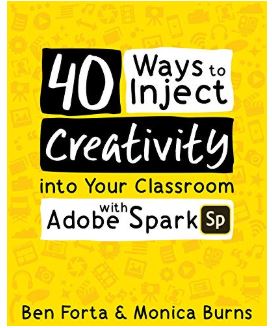
Here is my Pear Deck. I am not ready to buy my own Pear Deck account, but I think it would be nice for teachers to in our district to have access to it. I explored Adobe Spark some more. I recently acquired a copy of this book-
and I have been looking at ways to use it with students. I wish the age for using it was lower so students could use it freely in upper elementary. I like the possibilities and I see teachers using it more to create posts for Seesaw and Class Dojo feeds. Back to Pear Deck - I hope to explore it's use with a 4th grade class while I still have the free trial. I am going to meet with the teacher next week to see how we can use it with her class for their current unit of study. More on this after we get going with our project!

Monday, January 21, 2019

Thing 01: Blogging

A new year, a new perspective, 7 schools, 1 me. I am here this year halfway through my 6th year working with the Instructional Technology Department in Rochester. I currently work with 7 buildings to support students, teachers and administrators with integrating technology into the curriculum. Our department has spent the past few years creating and facilitating online PD to help the teachers in our district with G Suite and using Chromebooks and iPads with their students. We have thousands of devices out there in the schools and students are using them! It is really amazing. I am hoping to find some new "things" in this year's round of cool tools to bring to my students and teachers. I am looking for a mix of things - something for novice teachers to get them excited and build their confidence and something for the advanced user. You know the one - they know as much or more than you do when you go to work with them. I love it when I find something they haven't seen yet because we can connect and get excited about the technology together. At the end of last year our staffing was cut back while the number of devices continued to increase in our schools. There is only 1 me. I get overwhelmed from time to time because of the number of people I support and because my job is a lifestyle - schools by day, online PD facilitator by night. Anyone else out there feeling the weight like me?

Sunday, May 20, 2018

Thing 12: Final Reflection 2017-2018

This year's Cool Tools pushed me to try new things with my teachers and students. I might not have tried the green screen if I hadn't read about it here. Now I have several classes using it for projects.

My favorite cool tool from this year is Bimoji. I think I am driving my family a little crazy with them. There are so many good options for responses in texts. Adding them to lessons has worked to engage students, especially the older students. Teachers are going to love making Bitmoji stickers for their Google Classroom grading.
Exploring eBook creation through Cool Tools has helped me better support teachers in publishing student work. Now that our district has undergone an iPad refresh, teachers and students have very few glitch issues and a lot more options for publishing work.
Even though the PD is ending, I am planning to explore more of the lessons. I have teachers interested in Makerspaces, so that is where I am heading next!

Thing 14: eBook Creation

Publishing work in first grade is a goal many teachers have, but struggle to accomplish. I have many teachers tell me that finding a way for their entire class to publish in a timely manner is a struggle. They can't sit with each student and help them individually get their work into a computer or device for every time they would like to publish something. To help meet this need I explored and then started to use Book Creator to help students showcase their work. I find that working with a small groups of students to create a book teaches the process and then gives them the tools to start making their own books. One first grade class made habitat books. Each student created a page of the book, adding the text and images. Then we published them in the iPad so they could read each other's work. This served as a springboard for students to begin making books on their own. Like any task, some struggled, so the students who had expertise supported their classmates to help them develop independence. I mentioned in an earlier blogpost that I started using ChatterPix with third graders. I am thinking about trying it out with kindergartners as they study letter names and sounds. I was thinking in could be fun to make alphabet books with images that say their names - like an image of an apple that says the short a sound.

I am about to try a project with a second grade class where we make comic books using Book Creator.

Another app I am interested in trying is Flipsnack. This lesson took me on an adventure around the different ebook creation apps. I ended up at this site and now I want to explore storymash with some of the older students.
One more thing - Seesaw does a nice job with creating a place to publish student projects for parents to see. I have been suggesting that teachers use it for publishing if they are already using Seesaw as part of their classroom communities.

Thing 37: Green Screen Fun!

This year I explored and started using DoInk, the green screen app. I started small by working with a principal to do the book of the month. I recorded the principal with a green screen in the background and then added images behind her. After doing this a couple of times I found that I preferred to record her reading and then use images against her audio, skipping the green screen. I changed methods, because when I edited the video it became difficult at times to have smooth transitions if I was combining clips. Sometimes her image was larger or smaller in one of the clips and it became choppy. In another project we recorded students talking about their monthly learning. This went better - we had a news desk template created and used it as the background - to look like a TV news set. It looked great and became more an exercise in keeping students focused and not too giggly when they were recording. I still found that keeping students' images the same size was tricky at times when editing. I am curious about what other people do when editing to keep things even and smooth with the images. I watched the DoInk tutorials, but I didn't really learn it until I tried it.
Little takeaways I have:

>Make sure your green screen background is ironed/not wrinkly or bunched up - you can't hide it when you are editing.

>Keep your recording device in the same position/distance from the thing you are recording or your editing can get challenging.

>If you use an iPad for recording, the recording space is actually larger than it appears on the iPad, so keep that in mind when you set up your device and the green screen set.

>Don't let your recording session be the first time you try DoInk! Play with it before you are going to actually use it for the classroom.

>Remember to have fun! The possibilities are endless!

Thing 16: Bitmoji Fun

Can I tell you how much I LOVE bitmojis? They are the coolest. The chrome bitmoji extension is great. Middle schoolers love when teachers use the bitmojis in the classroom - it bridges communication between teachers and students, making teachers seem more in tune with the digital age. I have seen teachers use bitmojis to grab attention in a slides lesson or in a Seesaw post. So many of the bitmojis bring a smirk to my face when I see them. I love introducing teachers to the bitmojis. I think students may not be expecting teachers to integrate something they use readily into the day. Like anything, it could lose it's impact if used too much, but what a great tool to add to the box! I haven't invited students add the chrome bitmoji extension because some of the bitmojis are less appropriate for school. It is a dilemma that I haven't resolved yet. As a role model, I don't want to introduce tools that include words that are inappropriate for school. It is a teachable opportunity to discuss which ones are not appropriate for the school setting, but not worth the risk for me at this point.
I watched the linked bibmoji BookSnap video and really liked the idea. A lot of my middle schoolers have Instagram and Snapchat. I am going to ask them to try making a #booksnap with a book they are reading - The Omnivore's Dilemma by Michael Pollan. Some of them have bitmoji on their phones, so for those students I will ask them to include one on the booksnap. I will have them email it to themselves so they can upload it to Google Classroom. It should be interesting and fun to see what they come up with! One more thing - I have used Chatterpix with younger students this year to create images that talk. With third graders we worked on a project where they chose an inanimate object and thought about what it might say. One student took a photo of a coffee mug and had it say, "Ouch. Stop burning me with your coffee." She added flames coming out of the top of the mug.

Tuesday, May 15, 2018

Thing 01: Blogging

Every so often - yearly now that I am doing Cool Tools again - I get excited about blogging. The first time I ever blogged was when I had infant twins and I wanted a place to put my struggles and joys. Currently I am an Instructional Technology Resource Teacher, so I don't have my own class and students that I see daily. Instead I have 5 schools that I support with many students that I am lucky enough to work with when they are making ebooks or learning about Chromebooks and iPads. I think for me, a blog might be a great place to share resources and create posts about projects I am working on with students and teachers. I have not made it a priority to sit down and blog about the work I am doing, but I am thinking that it would be a great way to create a professional blogfolio and also to show teachers ideas about how I can work with them and their students. I am hoping to support each classroom teacher at one of my schools to create a blog where students create entries about what they are learning and other class happenings and news. I would like to do a brief PD with the teachers and then work with them individually to set up their blog and push into their classes to get students started on creating posts. I am setting this goal for next school year. With Seesaw and Dojo stories, I feel like the teachers might prefer to use one of those programs instead of traditional blogging. I think it would be very doable for the students to use something like Seesaw to create posts and share their work. Do other participants in Cool Tools find that teachers are using apps like Seesaw in place of a blog with a URL address?