Saturday, February 2, 2019

Final Reflection 2018-2019

This round of Cool Tools gave me the chance to explore several things I have been wanting to know more about: Flipgrid, Pear Deck, Adobe Spark, Ways to support ELLs- all to deepen student engagement and differentiate to the learning experience for students. With digital tools, we can and must make the best use of the tools and apps out there to support students' individual needs. I am going to bring the tools I explored this season to the teachers and students I work with, to hopefully enhance feedback and interaction between students and the material they are learning. I made an Adobe Spark to represent my learning from this session of Cool Tools.
"One of the biggest advantages to using these kinds of tools is that they give every student in a class a voice. Students are spared the embarrassment of having to volunteer or be called on to answer a question out loud because everyone answers" -Tony Vincent


During the workshop the main challenge I faced was time. I wanted to explore everything, but I just couldn't. I made a list of things I want to look when I get a moment- Buncee and Peergrid are at the top. I am mindful of the time it takes to explore and try new things. I am grateful that my department works really hard to support teachers in trying new things with students. I am going to pursue the suppporting ENLs/ELLs with digital tools PD with my colleagues.I think that's a pretty good outcome for the time I have put in! Onward!

Thing 18: Student Assessment and Feedback Tools

I am interested in assessment and how 1 to 1 roll-outs make it possible for instant, direct feedback for students.It feels like a game changer. I like that teachers can adjust their lessons and differentiate for students in the moment. As a classroom teacher I experienced a lot of inner struggle when it came to assessment because I had some tried and true methods of assessing students for learning, but I always felt like there wasn't enough time for me to really give each student everything they needed. In this exploration I was intentionally looking for tools that could assist teachers with assessment for learning (formative assessment) and also increase students' independence in the assessment process. I wondered if there were tools to make assessment more collaborative between students as well as ways for students to get feedback that didn't come directly from the teacher. I was also looking for tools that would encourage student collaboration.

As I read through the suggested blogs I noticed that many of the tools are quiz-like, and teacher-centered/fact based. For these apps, the teacher customizes the tool- makes a quiz on Kahoot, creates a Quizizz, etc. These tools are useful for group learning -whole or small, but what if the teacher is facilitating learning, rather than giving information?

As I looked, I was happy to find a qualitative type app that allows students to give each other feedback: Flipgrid. I like it because it can be used for so many things. I love that students put their ideas on a video. Their thoughts are verbal, so the facial expressions and tone are still present (unlike written comments). This app maintains some personalization. So often feedback is only words on the screen, without the person who wrote them. Students can give each other feedback on their response and the teacher can speak right to the student in a video. I am thinking there are so many uses for Flipgrid - foreign language quick checks where students do an oral demonstration of their language skills, music class - students can play a passage they have learned on their instrument, math - they can explain how they solved a problem.


I am going to meet with teachers to get them started using flipgrid with their students next week. I am thinking a math exit ticket would be a great starting point, but I like to see what the teachers are working on with their students and then seeing how the tool will fit in with the lesson, so this will be continued. I explored two more apps - Edpuzzle and Peergrade. Edpuzzle seems great for people who are flipping their lessons or if you have a video you would like students to watch. Unless the videos were made by students, it feels very teacher centered to me, which is fine, but I am looking for a more student-centered app. Lastly, I tried Peergrade. That one is going to take a lot more experimenting before I can say for sure what I think. At first glance it feels a little complex. I plan to play around with it. I am way over my time for this "Thing" at the moment! If you have any opinions about Peergrade, I would be interested to hear them!

Thing 21: Supporting ELLs

After hurricane Maria devastated Puerto Rico, our district opened a school for the many students who arrived in Rochester because they had lost their homes. We began to get many questions from their teachers about what apps and tools are available to help the many ELL students. A lot of teachers were asking to have their students use programs like Lexia or RAZ Kids. Teachers were desperate for something that could help students develop their English quickly. I explored thing 21 to see beyond Lexia and RAZ kids as digital supports for ELLs.
I read the blogs, "12 Ways to Support English Learners in the Mainstream Classroom" and "How to use Technology to Support ELLs in your Classroom." The first suggestion in the Common Sense education blog was not lost on me - Look for ELL friendly supports in the tools you are already using. It is such a simple suggestion that left me thinking, "Duh!" while also asking myself how often have I done this in the apps and the Google Suite with my ENL teachers in mind? I have explored Google Translate and voice thread before when working with ELL students. My first time with Google translate was with a student who only knew Arabic. I was able to give information to her, but having her respond became an immediate problem because the keyboard did not have the Arabic letters for her to create responses to the questions and information that weren't covered by nodding or shaking her head. I love that Google Slides has the captions feature. This is new to me and I think it can be useful for older students, especially in a blended model of teaching where the students are working online as well as face to face. This tool is really amazing. I had a lot of fun trying it out. I like how it supports the connection between hearing the language and seeing the words. It was very accurate in the slides I tried. One thing I wonder is how it does with really technical subjects like chemistry where the language is extremely specialized. As a side note - captions would also be an incredible tool for students with hearing loss so they don't miss spoken information during presentations.
In "12 Ways to Support English Learners in the Mainstream Classroom" the immediate thoughts I had are that Google makes it quite simple to make it visual - you can add images and videos as you are working. This increases the power of differentiation in Google Classroom because you can add the images and videos to documents and assignments right there for your ELL students. It does become a question of time of course, but the technology saves hours of looking in and for books that present the information you need to teach. I discussed this with one of the classroom teachers I support. She has been trying to find ways to support her ELL students while using Google Classroom. After I read and explored I had an interesting conversation with an ENL teacher about the tools I learned in Thing 21. She said that she was glad I was learning more about these tools and that she struggles sometimes to when advocating for her students in their classes. It got me thinking that maybe our department should consider developing an online PD aimed at digital tools for classroom teachers to support ELL students. I plan to bring this up to my colleagues. We try to infuse ideas throughout our PDs, but it might be good for us to have a specific PD on supporting ELLs. I plan to propose the creation of a digital tools to support ELLs PD in our department. I'll let you know what happens!

Friday, February 1, 2019

Thing 7: Presentation Tools

In my position people ask me what I think of Google Slides. There are still the tried and true Power Point lovers who don't want to make the switch to slides. While I know they are mainly averse to the time it takes to learn something new,there are some things I think Power Point does better -for example, animations/slide transitions. Our district utilizes the Google Suite, so people who hang on to Power Point tend to get confused and frustrated if they are asked to use slides. I explored Thing 7 with hopes of learning ways to enhance slides and to get familiar with Pear Deck. I think Pear Deck is snappy and I like how it engages the learners/participants in your lesson/slides presentation. Students can type or draw, they can answer a question or check in with how engaged they feel, they can do a quick check for understanding poll. The presenter controls when the responses are showing and students can use their device to engage/interact with the lesson and the class. I have used Poll Everywhere and I like its features, but I have to say that I think Pear Deck is pretty great for enhancing student presentations. I made a Pear Deck to use for literature circles comparing two books. I included a slide here with a response that was entered on an iPhone. The response takes up the whole slide. It was hard to response with a finger as a stylus on the phone. The text features are great and I would definitely have to think more about how I would have students use the drawing feature. I don't think using chromebook mousepads would be much easier for drawing.
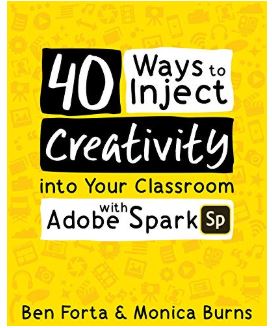
Here is my Pear Deck. I am not ready to buy my own Pear Deck account, but I think it would be nice for teachers to in our district to have access to it. I explored Adobe Spark some more. I recently acquired a copy of this book-
and I have been looking at ways to use it with students. I wish the age for using it was lower so students could use it freely in upper elementary. I like the possibilities and I see teachers using it more to create posts for Seesaw and Class Dojo feeds. Back to Pear Deck - I hope to explore it's use with a 4th grade class while I still have the free trial. I am going to meet with the teacher next week to see how we can use it with her class for their current unit of study. More on this after we get going with our project!

Monday, January 21, 2019

Thing 01: Blogging

A new year, a new perspective, 7 schools, 1 me. I am here this year halfway through my 6th year working with the Instructional Technology Department in Rochester. I currently work with 7 buildings to support students, teachers and administrators with integrating technology into the curriculum. Our department has spent the past few years creating and facilitating online PD to help the teachers in our district with G Suite and using Chromebooks and iPads with their students. We have thousands of devices out there in the schools and students are using them! It is really amazing. I am hoping to find some new "things" in this year's round of cool tools to bring to my students and teachers. I am looking for a mix of things - something for novice teachers to get them excited and build their confidence and something for the advanced user. You know the one - they know as much or more than you do when you go to work with them. I love it when I find something they haven't seen yet because we can connect and get excited about the technology together. At the end of last year our staffing was cut back while the number of devices continued to increase in our schools. There is only 1 me. I get overwhelmed from time to time because of the number of people I support and because my job is a lifestyle - schools by day, online PD facilitator by night. Anyone else out there feeling the weight like me?

Sunday, May 20, 2018

Thing 12: Final Reflection 2017-2018

This year's Cool Tools pushed me to try new things with my teachers and students. I might not have tried the green screen if I hadn't read about it here. Now I have several classes using it for projects.

My favorite cool tool from this year is Bimoji. I think I am driving my family a little crazy with them. There are so many good options for responses in texts. Adding them to lessons has worked to engage students, especially the older students. Teachers are going to love making Bitmoji stickers for their Google Classroom grading.
Exploring eBook creation through Cool Tools has helped me better support teachers in publishing student work. Now that our district has undergone an iPad refresh, teachers and students have very few glitch issues and a lot more options for publishing work.
Even though the PD is ending, I am planning to explore more of the lessons. I have teachers interested in Makerspaces, so that is where I am heading next!

Thing 14: eBook Creation

Publishing work in first grade is a goal many teachers have, but struggle to accomplish. I have many teachers tell me that finding a way for their entire class to publish in a timely manner is a struggle. They can't sit with each student and help them individually get their work into a computer or device for every time they would like to publish something. To help meet this need I explored and then started to use Book Creator to help students showcase their work. I find that working with a small groups of students to create a book teaches the process and then gives them the tools to start making their own books. One first grade class made habitat books. Each student created a page of the book, adding the text and images. Then we published them in the iPad so they could read each other's work. This served as a springboard for students to begin making books on their own. Like any task, some struggled, so the students who had expertise supported their classmates to help them develop independence. I mentioned in an earlier blogpost that I started using ChatterPix with third graders. I am thinking about trying it out with kindergartners as they study letter names and sounds. I was thinking in could be fun to make alphabet books with images that say their names - like an image of an apple that says the short a sound.

I am about to try a project with a second grade class where we make comic books using Book Creator.

Another app I am interested in trying is Flipsnack. This lesson took me on an adventure around the different ebook creation apps. I ended up at this site and now I want to explore storymash with some of the older students.
One more thing - Seesaw does a nice job with creating a place to publish student projects for parents to see. I have been suggesting that teachers use it for publishing if they are already using Seesaw as part of their classroom communities.

Thing 37: Green Screen Fun!

This year I explored and started using DoInk, the green screen app. I started small by working with a principal to do the book of the month. I recorded the principal with a green screen in the background and then added images behind her. After doing this a couple of times I found that I preferred to record her reading and then use images against her audio, skipping the green screen. I changed methods, because when I edited the video it became difficult at times to have smooth transitions if I was combining clips. Sometimes her image was larger or smaller in one of the clips and it became choppy. In another project we recorded students talking about their monthly learning. This went better - we had a news desk template created and used it as the background - to look like a TV news set. It looked great and became more an exercise in keeping students focused and not too giggly when they were recording. I still found that keeping students' images the same size was tricky at times when editing. I am curious about what other people do when editing to keep things even and smooth with the images. I watched the DoInk tutorials, but I didn't really learn it until I tried it.
Little takeaways I have:

>Make sure your green screen background is ironed/not wrinkly or bunched up - you can't hide it when you are editing.

>Keep your recording device in the same position/distance from the thing you are recording or your editing can get challenging.

>If you use an iPad for recording, the recording space is actually larger than it appears on the iPad, so keep that in mind when you set up your device and the green screen set.

>Don't let your recording session be the first time you try DoInk! Play with it before you are going to actually use it for the classroom.

>Remember to have fun! The possibilities are endless!

Thing 16: Bitmoji Fun

Can I tell you how much I LOVE bitmojis? They are the coolest. The chrome bitmoji extension is great. Middle schoolers love when teachers use the bitmojis in the classroom - it bridges communication between teachers and students, making teachers seem more in tune with the digital age. I have seen teachers use bitmojis to grab attention in a slides lesson or in a Seesaw post. So many of the bitmojis bring a smirk to my face when I see them. I love introducing teachers to the bitmojis. I think students may not be expecting teachers to integrate something they use readily into the day. Like anything, it could lose it's impact if used too much, but what a great tool to add to the box! I haven't invited students add the chrome bitmoji extension because some of the bitmojis are less appropriate for school. It is a dilemma that I haven't resolved yet. As a role model, I don't want to introduce tools that include words that are inappropriate for school. It is a teachable opportunity to discuss which ones are not appropriate for the school setting, but not worth the risk for me at this point.
I watched the linked bibmoji BookSnap video and really liked the idea. A lot of my middle schoolers have Instagram and Snapchat. I am going to ask them to try making a #booksnap with a book they are reading - The Omnivore's Dilemma by Michael Pollan. Some of them have bitmoji on their phones, so for those students I will ask them to include one on the booksnap. I will have them email it to themselves so they can upload it to Google Classroom. It should be interesting and fun to see what they come up with! One more thing - I have used Chatterpix with younger students this year to create images that talk. With third graders we worked on a project where they chose an inanimate object and thought about what it might say. One student took a photo of a coffee mug and had it say, "Ouch. Stop burning me with your coffee." She added flames coming out of the top of the mug.

Tuesday, May 15, 2018

Thing 01: Blogging

Every so often - yearly now that I am doing Cool Tools again - I get excited about blogging. The first time I ever blogged was when I had infant twins and I wanted a place to put my struggles and joys. Currently I am an Instructional Technology Resource Teacher, so I don't have my own class and students that I see daily. Instead I have 5 schools that I support with many students that I am lucky enough to work with when they are making ebooks or learning about Chromebooks and iPads. I think for me, a blog might be a great place to share resources and create posts about projects I am working on with students and teachers. I have not made it a priority to sit down and blog about the work I am doing, but I am thinking that it would be a great way to create a professional blogfolio and also to show teachers ideas about how I can work with them and their students. I am hoping to support each classroom teacher at one of my schools to create a blog where students create entries about what they are learning and other class happenings and news. I would like to do a brief PD with the teachers and then work with them individually to set up their blog and push into their classes to get students started on creating posts. I am setting this goal for next school year. With Seesaw and Dojo stories, I feel like the teachers might prefer to use one of those programs instead of traditional blogging. I think it would be very doable for the students to use something like Seesaw to create posts and share their work. Do other participants in Cool Tools find that teachers are using apps like Seesaw in place of a blog with a URL address?

Sunday, May 21, 2017

Thing 5: Final Reflection (Thing 12)

As I look back at the Cool Tools experience, I am thinking about how many times I went to the Cool Tools site to explore and research for teachers and students I work with every day. I am an Instructional Technology Resource Teacher and I am always looking for ways to enhance the teaching and learning technologically at the schools I work with. Each time I have gone to the site and browsed through the topics and resources I have been amazed at how much is out there. The Cool Tools resource is incredible. Just last week I was meeting with colleagues and we immediately went to the Cool Tools site to look up helpful tools for the topic we were working on. As far as challenges to the projects, the main one I encountered was getting overwhelmed at times by how much is out there. I would end up in a rabbit hole and I had to stop and tell myself to narrow down the scope of what I was looking at so that I didn't go on overload. I think about what it is like to be a student in the digital age and I can see our students getting overwhelmed with the vast possibilities of research on the internet as well as what app/tool to use for the job. I plan to think aloud with students about my experiences of not knowing when to stop or which tool to choose so they can see they are not alone when it happens to them. All the things I have tried have inspired me to want to learn more. I can't wait for next year's Cool Tools PD. I like how the blog forces me to think about and reflect on topics for tech learning. The site also helps me as I create PD for teachers who are going to use technology with their students. Sites like HistoryPin and the sites related to Digital Citizenship are ones I plan to return to frequently. Interestingly, being a parent myself, I found the SnapChat information extremely useful for parenting. I shared it with my parent friends too. The hardest part for me was forcing myself to sit down and write the blog posts. Once I was engaged in the writing it was really fun. For the next time I would like to dedicate time to blogging. I think putting it in my calendar could help with that. I also want to take better advantage of the community that exists through Cool Tools. I am hooked!

Thing 4: Digital Tattoo (Thing 17)

My first thought upon reading the title of this assignment was a question: why call it Digital Tattoo? Tattoos can be removed, but I am pretty sure Digital Tattoos are permanent. I was drawn to this assignment because a class I am working with had an encounter with unexpected inappropriate content. Everything turned out okay, but the teacher was left with concerns about how to ensure her students' safety while online. I designed a series of lessons for the students where I hoped to facilitate dialogue. My exploration for this lesson led me to some things I like. I think this Digital Intelligence or "DQ" image is great to use with teachers so they can begin to see all the facets of digital citizenship. I especially like the quote from the site, "the acquisition of these abilities should be rooted in desirable human values such as respect, empathy and prudence. " Teachers who are not digital natives are not coming to the table with notions of what we should teach, but not the experience of being a youth in a digital age.
We already teach the values of respect, empathy, and prudence toward one another in face to face encounters. In my research for how to work with the students on what to do when some unexpected content emerges I found a great video on Flocabulary. I wish it wasn't a paid site, or rather, I wish I had a subscription to it. I used the video on Digital Citizenship to open the dialogue. Then I presented some cases that highlighted digital dilemmas on Google Classroom. The students were very engaged in the lessons and had a lot of thoughtful contributions to the discussion. I highly encourage people to check out Flocabulary if you haven't see it yet. I have used Netsmartz as well with students, but I wanted to branch out for this class. The next thing we are going to talk about is branding and how they want their "brand" to look on the internet. We will explore brand reputations of popular products. I am going to incorporate the 9 points students need to know about digital citizenship from this site. We really need to try to step into the shoes of our students and children to see what their natural impulses are and how they could turn into unwanted permanent tattoos. I definitely think there should be differentiation for differently aged students. The message can remain the same - think before you post - is it kind? is it helpful? is it something I would want my grandmother to see? We are in some uncharted territory. I think the students can be a strong voice for each other in thinking about what to do. One idea I have is to have the students make an internet etiquette guide (similary to Miss Manners) that they could share on a class webpage. Maybe it will catch on....

Thing 3: Photo Fun! (Thing 2)

I decided to explore the Photo features a bit more. I am working with some teachers who want to do more with the photos they have to document the learning and community they facilitate in their classrooms. For this task I started with what is familiar. have been on Instagram for a while and I like how it is only photos and stories (and super positive) as opposed to Facebook that seems to be full of politics, opinion, and quizzes. I follow a middle school librarian who does a super job of promoting books and her library with her students. I think fifth and sixth grade teachers could do similar things to promote the daily learning in their classrooms. I recognize there is a level of dedication and time required to be successful with an Instagram campaign. I explored SnapChat for this assignment. I like how easy it is to take a picture and customize it. I can now see why kids like to use it. I found the information about SnapChat safety for parents and teachers to be good information. I have had a lot of questions about SnapChat including how a person would use it other than for connecting with close friends (showing my age here). I think the idea of using it for reminders to intermediate students is a good one. I could also see a teacher using it to send positive encouragement to a student about behavior and learning in a personal way. Taking a quick snap of a thumbs up or a phrase like, "You've got this!" or "Nice comment in class today!" They could also use it as a way to check in privately so a student can save face - "everything ok?" At the lower levels we are using Seesaw and Class Dojo. Not quite the same, but a good way to share photos with parents and the school community. I use these two apps with teachers already - so I did not explore them here. For this assignment I also checked out HistoryPin and it got me thinking that it would be a great way to use technology with history lessons. Many 6th grade students read Dragonwings by Laurence Yep about Chinese immigration and the 1906 earthquake of San Francisco. I would like to have students explore the 1906 earthquake on HistoryPin. I think there are a lot of possibilities for using HistoryPin to study architecture and local history as well. A third thing I learned in this lesson is that people have special apps on their phones to make the camera into an DSLR camera. Who knew??? I see some amazing photos posted on Instagram. Now I see the secret to getting better pictures. I am going to download ProCamera+ to my phone to see what it can do. I wonder how well an app like this works to improve iPad photos? Students could do a lot with taking photos on an iPad and improved image quality would be great. I am still wondering about what apps or web based features people like to use to compile end of year photo montages, especially with music. If anyone has a favorite they are willing to share I would really appreciate it!

Friday, March 10, 2017

Thing 2: Twitter and Other Online Communities (Thing 3)

I have been a member of Twitter for a while, but haven't really explored it much until the other day when we had a huge windstorm and I wanted to see updates about the storm, so I started exploring different handles and hashtags. My school related connection to Twitter started this past summer when our department had a technology day at a conference for administrators. Some teachers I know have been using Twitter to reach out to children's authors and other figures for classroom connections. Up until now it has felt a little like "one more thing" for me to try keep up with, but I am starting to feel the ways it can enhance my learning, so I am lurking more and more. For this assignment I explored some hashtags- slscooltools and edchat. I quickly went down a rabbit hole about 150 Chrome Apps and Extensions. I was really happy to see that I was already familiar with many of the suggestions on the blog. I like how I was able to filter the 150 by grade levels. I also found an interesting poster about differentiation. My favorite feature to come out of my exploration of Twitter today was the 3 Fast, Free Lesson Plans to Fight Fake News. I am finding fake news to be more and more of an issue. I don't click on much in Facebook anymore because so much of it has the potential to be fake (not too mention that it can really raise a person's blood pressure). I work with several classes of students in 5th and 6th grade and I think they would enjoy learning how to vet information and sources. I think we owe it to the students to help them learn about this now since they get so much information through their phones and tablets. We need to help them learn to navigate the posts and headlines so they can develop their ability to determine fact from distraction. I am going to continue to explore Twitter for professional connections and ideas for teaching. I think I am going to go through and search for my favorite writers and thinkers out there so I can start to get some daily inspiration. I also plan to use Twitter to help teachers reach out to more people for possible hangouts with their students. Who knows, maybe I'll even try tweetchat. My main concern is how to keep all of the tweets organized. How are others organizing their Twitter feed?

Tuesday, January 3, 2017

Thing 1: Blogging

About me... I'm in my 4th year as an Instructional Technology Resource Teacher for the Rochester Schools. I work with students and teachers to find ways that technology can fit into the classroom curriculum. I have taught for over 20 years, with most of my time as a classroom teacher. I currently work with 4 elementary schools. Four might sound like a lot, until you hear that I had 8 schools last year. I love helping people. I am participating in Cool Tools because I want to learn more about the tech tools that students and teachers can use to make learning meaningful and memorable. I think technology can make learning more authentic by providing a purpose. Recently I helped two classes have a hangout with Jewell Parker Rhodes, the author of Falling Towers. As the students read the book, many questions came to their minds. With some encouragement, their classroom teacher contacted Ms. Rhodes and she enthusiastically agreed to do a Google Hangout with the class. It was an incredible experience for the students and the teachers. I want to know about what new tech tools are out there so I can connect students and teachers with the world and make their curriculum come alive. During this lesson I have learned that it is not hard to get a blog started. I watched the interview with Ms. Hernandez about the blogfolios and read about getting students started with blogging. I have to admit that I was a little concerned about the blogfolios as I watched the video because most of them are in the public domain. I like the idea that teachers can work with students to make sure their posts are safe. I read the blogs with tips for working with students who are posting. I liked how the students at the school in Florida in the video created guidelines for posting comments to their blogs because that is an authentic way to teach online etiquette. I think I would be more comfortable with kid blogs if they were in a protected domain, one where students and parents can interact with the blog, but it would not be open to the entire internet. I also think a concept like blogfolios requires a deep commitment from the adults supporting the students to ensure that a safe environment is maintained. Teachers would need to be actively reading through the blogs and the comments regularly to ensure students were following the guidelines. I think blogging is a great way to teach children about how to conduct themselves on the web because it is authentic. I do think that teachers would have to be very committed to the work in order to ensure the integrity of the projects.